
Your Xbox gamertag is your digital identity across the entire Xbox ecosystem. It's the name that appears when you join multiplayer lobbies, chat with friends, show up on leaderboards, and represent yourself in the gaming community. Whether you're playing on an Xbox Series X|S, Xbox One, Windows PC, or through Xbox Cloud Gaming, your gamertag follows you everywhere.
There are plenty of reasons why you might want to change your gamertag. Perhaps the name you chose years ago no longer reflects who you are as a gamer. Maybe you're transitioning into streaming or esports and need something more professional. Or maybe you're simply tired of the auto-generated gamertag that Microsoft assigned when you first created your account.
Whatever your reason, changing your Xbox gamertag is a straightforward process that can be done through multiple methods—on your console, through a web browser, using the Windows Xbox app, or via your mobile device. And if you're struggling to come up with the perfect name, we've also included some cool Xbox gamertag ideas to inspire your next gaming identity.
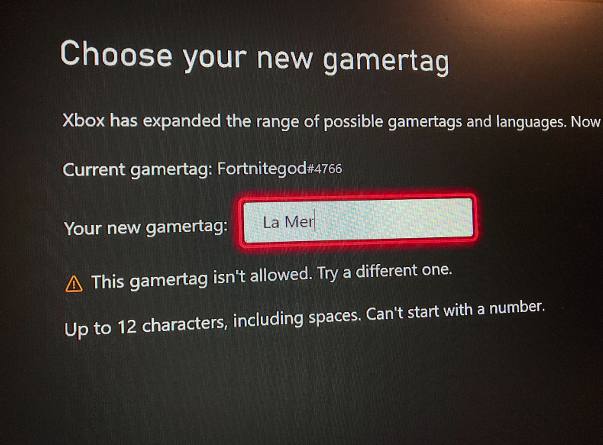
Before you dive into the process, there are several important details you should understand about how gamertag changes work on Xbox.
Your first change is free. When Microsoft creates your account, it often assigns an auto-generated gamertag. Because of this, every Xbox account gets one complimentary gamertag change. This free change lets you pick a name you actually want. However, if you already chose your own gamertag during account setup rather than accepting an auto-generated one, you may have already used this free change.
Subsequent changes cost money. After your first free change, every additional gamertag modification costs $9.99 USD. Pricing varies by region and currency, so the exact amount may differ depending on where you live.
Character limits apply. On Xbox Series X|S and Xbox One, gamertags can be between 3 and 12 characters long. Spaces are allowed and count toward the character limit. Gamertags cannot start with a number, and consecutive spaces are not permitted. Notably, Xbox 360 allowed up to 15 characters, but this longer format doesn't carry over to newer systems.
The system handles duplicates with numeric suffixes. Since 2019, Xbox has allowed multiple players to use the same base gamertag by adding a unique numeric suffix after a hashtag symbol. If your desired name is already taken by another player, Xbox will automatically assign you something like "YourName#1234." The suffix appears in a smaller font to keep the focus on your chosen name, but it will be visible in games and across the Xbox interface. The only way to avoid a suffix is to choose a gamertag that no one else has claimed.
You cannot choose your own suffix. The numeric suffix is auto-assigned by Xbox to ensure uniqueness. Players cannot select or modify their suffix number.
Changing your gamertag directly from your console is convenient and can be done in just a few steps.
Your new gamertag should update immediately across the Xbox ecosystem. Give your console a quick restart if you notice any apps or games still showing your old name.
The process on Xbox One is nearly identical to Xbox Series X|S, though the interface may look slightly different depending on your dashboard version.
If you're using an older interface, you might navigate through Settings > Account > Profile > Gamertag to reach the same destination.
The Xbox app for Windows 10 and Windows 11 provides a desktop method for changing your gamertag without needing your console.
If you've already used your free gamertag change, the Xbox app will redirect you to Xbox.com to complete the process and handle payment.
Changing your gamertag through a web browser is arguably the easiest method since you don't need to navigate controller-based menus.
The Xbox mobile app allows you to change your gamertag on the go without accessing a console or computer.
Your new gamertag syncs instantly across all platforms—there's no need to manually update anything else.
Understanding the cost structure can help you avoid surprises when changing your gamertag.
Your first gamertag change is free, provided you haven't already used it. This free change exists because Microsoft often auto-generates gamertags for new accounts, and the complimentary change lets you pick something meaningful.
After the free change, each subsequent modification costs $9.99 USD in the United States. Regional pricing varies based on local currency and market conditions. For example, prices can range significantly across different countries—from a few dollars equivalent in some regions to around the same $10 range in others.
If you don't have a payment method associated with your Microsoft account, you'll need to add credit card details or use Microsoft account balance to complete the transaction. Xbox gift cards can also be used to add funds to your account for this purpose.
When your desired gamertag isn't available, Xbox automatically adds a numeric suffix (like #1234) to differentiate you from the original owner. This is by design and cannot be avoided unless you choose a completely unique name that no one else has claimed.
To increase your chances of getting a suffix-free gamertag, try creative spelling variations, add meaningful numbers that you choose (incorporated into the main name), combine unexpected words, or use less common terms that are unlikely to be taken.
If your payment fails when trying to change your gamertag, check that your Microsoft account has a valid payment method on file. Verify that your billing address matches the payment method's registered address. Region mismatches between your Xbox account region and payment method can also cause issues. If you continue experiencing problems, try adding Microsoft account balance via gift card as an alternative payment method.
Sometimes a new gamertag doesn't immediately appear everywhere. Here's how to resolve display issues:
Need some inspiration? Here's a collection of creative gamertag ideas organized by theme to help spark your imagination. Remember that popular names may already be taken, so be prepared to add your own twist or accept a numeric suffix.
These names project power, strength, and dominance—perfect for competitive multiplayer games where you want to intimidate opponents before the match even begins.
A clever gamertag can break the ice and make gaming sessions more enjoyable for everyone. These names show off your sense of humor and make you memorable in lobbies.
Clean, sleek names that sound impressive without trying too hard. These work well across all game genres and age gracefully over time.
Step into the world of magic and legendary creatures with names fit for an epic quest. Great for RPG enthusiasts and adventure game fans.
Perfect for stealth players, horror game fans, and those who prefer a sense of intrigue. These names add an air of mystery to your gaming persona.
Keep it unique and memorable. The more distinctive your gamertag, the more likely it will be available without a numeric suffix. Random word combinations, clever wordplay, or names with personal meaning to you tend to work well.
Avoid offensive language. Xbox has filters that block profanity, hate speech, and inappropriate content. Attempting to use such terms will result in rejection. Beyond the technical limitations, a clean gamertag presents better in all gaming contexts.
Consider future branding. If you have any interest in streaming, content creation, or competitive gaming, choose a name that works professionally. Something that's easy to say, spell, and remember will serve you better than an inside joke that made sense in high school.
Make it easy to pronounce. Gamertags that friends can easily say aloud during voice chat or that viewers can remember from streams tend to stick better than complex combinations of letters and numbers.
Use gamertag generators for inspiration. If you're stuck, various websites offer random gamertag generators that combine words and themes. Even if you don't use their suggestions directly, they can spark ideas.
Can you change your gamertag multiple times?
Yes, you can change your gamertag as many times as you want. However, only the first change is free. Every subsequent change costs $9.99 USD (or regional equivalent). There's no cooldown period between changes, but given the cost, most players choose carefully before committing.
Do friends get notified after the change?
Your friends don't receive a specific notification about your name change, but their friends lists update automatically to show your new gamertag. You might want to give close friends a heads-up to avoid confusion, especially if your new name is very different from your old one.
Does changing your gamertag affect saved games or achievements?
No. Your gamertag is tied to your Microsoft account, and all your game saves, achievements, purchases, and progress remain intact when you change your name. Everything transfers seamlessly to your new identity.
How long does the change take to update everywhere?
The change typically takes effect immediately across most Xbox services. However, some older games (particularly those released before 2020) may take longer to update or may display your gamertag differently due to how they were built. Restarting your console can help speed up the process for most applications.
Can I get my old gamertag back?
Once you change your gamertag, your old name is released back into the pool of available names. Someone else could claim it. If no one does, you might be able to claim it again, but you'd need to pay the change fee and there's no guarantee it will still be available.
Why do some gamertags have no numbers while mine does?
Gamertags without numeric suffixes belong to the first person who claimed that specific name. The suffix system was introduced in 2019 to allow more players to use popular names while maintaining uniqueness. The only way to have a suffix-free gamertag is to choose a name that nobody else has ever taken.
Changing your Xbox gamertag is a simple process that can be accomplished through multiple platforms—whether you prefer using your console, the Xbox website, the Windows Xbox app, or the mobile app on your phone. Each method leads to the same result: a refreshed gaming identity that follows you across the entire Xbox ecosystem.

